identifier 추가, 수정 또는 삭제
기존 shipping identifier 보기, 수정 또는 삭제:
- Dashboard → Settings → Australia Post shipper identifier로 이동합니다.
- shipper identifier를 확인합니다. identifier 옆 edit 또는 delete icon을 클릭합니다.
- Save를 클릭하여 변경을 완료합니다.
새 shipping identifier 추가:
- Dashboard → Settings → Australia Post shipper identifier로 이동합니다.
- Add another identifier를 클릭합니다.
- dropdown에서 Shipper identifier type을 선택합니다.
- shipper identifier를 입력합니다:
- MLID: 3–5자 대문자 영숫자
- APCN: 10자리 숫자만
- APBCN: 8자리 숫자만
- Save shipper identifier를 클릭합니다.
Note: 단일 organization에 동일 유형의 identifier를 여러 개 추가할 수 있습니다(예: 여러 MyPost Business account를 사용하는 경우 여러 APBCN).
Australia Post shipping identifier 찾기
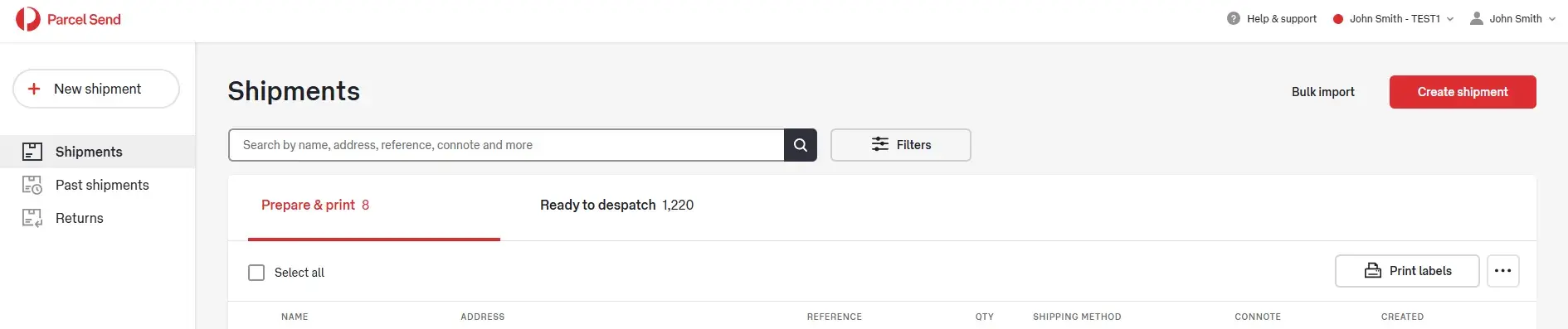
Parcel Send business customer의 **Merchant Location ID(MLID)**는 로그인 전 화면에 표시됩니다.
- 오른쪽 상단에 표시됩니다.
- 아래 예에서 MLID는 "John Smith –" 다음 텍스트입니다(예:
TEST1).
배송 식별자 관리
초기 설정 후 추가 Australia Post shipping identifier를 등록하거나 기존 identifier를 수정·삭제할 수 있습니다.